
Microsoft Dynamics AX 2012: Events and .NET Integration (I)
One of the most interesting technical novelties of Microsoft Dynamics AX 2012 (in my opinion) is the incorporation of Events. Knowing and using them is now an obligation to take advantage of all their benefits:
What are Events?
Let’s see it with a step-by-step example. We create a new class in Dynamics AX that extends RunBase, and implement its main() method as always by calling an internal run() method that will display a message:
class JAEEEjemploEventos extends RunBase
{
}
public static void main(Args _args)
{
JAEEEjemploEventos ejemploEventos = new JAEEEjemploEventos();
ejemploEventos.run();
}
public void run()
{
info(“Running class JAEEEjemploEventos in X++”);
}
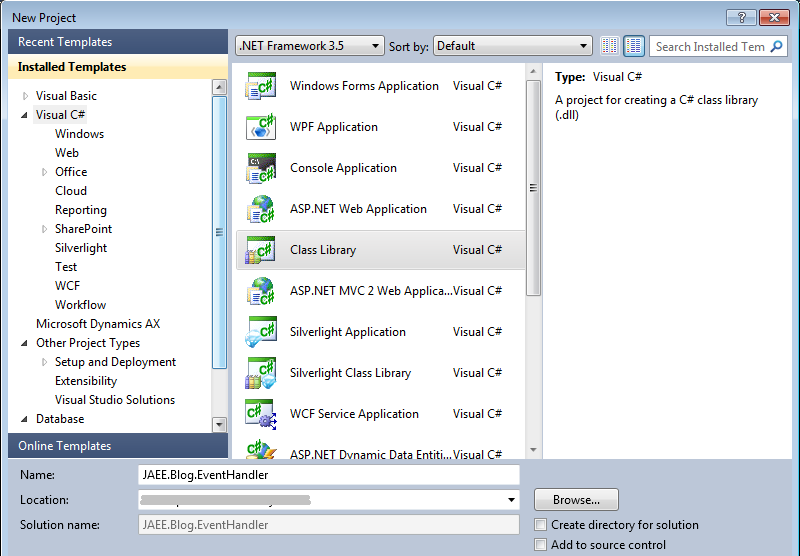
A very simple class, if we run it directly (F5) it will show a message in the InfoLog. Now let’s open a Visual Studio 2010 that we should have installed on the Microsoft Dynamics AX 2012 development machine, create a new project of type Visual C# Class Library. We give it a name to the project and a location (the path is irrelevant):
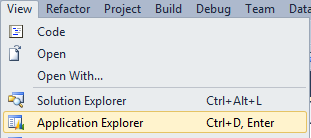
 If we haven’t done it before, go to View > Application Explorer:
 The AOT is now displayed in the workspace:
We search for the newly created class (you can search by typing on top, just like in the AOT from Dynamics AX) and expand its methods. It’s important that at this point the cursor is within the new class that has been created in the project. Right click on the run method and then Add post-event handler. Visual Studio warns us that the project we are working on has not been added to the AOT and asks if we want to add it now. We answer Yes since we want this code to be saved in the AOT as part of a development.
The AOT is now displayed in the workspace:
We search for the newly created class (you can search by typing on top, just like in the AOT from Dynamics AX) and expand its methods. It’s important that at this point the cursor is within the new class that has been created in the project. Right click on the run method and then Add post-event handler. Visual Studio warns us that the project we are working on has not been added to the AOT and asks if we want to add it now. We answer Yes since we want this code to be saved in the AOT as part of a development.
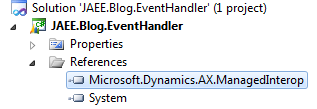
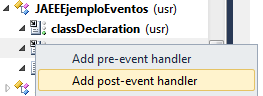 The consequences of these two actions (adding an event handler and adding a Visual Studio project to the AOT) can be seen in the code, where a new method has been added with annotations specific to Dynamics AX (we’ll see later what they mean) and also in the References node of the project where the reference to the Microsoft.Dynamics.AX.ManagedInterop assembly has been added that will allow us to interact with Dynamics AX objects from our C# code:
 To check this interaction, we return to the Application Explorer and search for the Global class (we all know what it’s for in Dynamics AX). We right-click and Add to project:
 Now in the Application Explorer we can see that the Global class is part of our project and we can use it as if it were a class declared in the C# code (in fact, it is, as we’ll see):
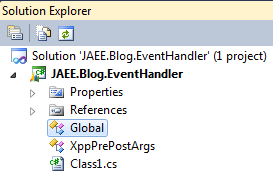 We modify the C# code by adding a new line that uses the Global class from Dynamics AX to display a message in the InfoLog. The similarities with the corresponding X++ code are evident.
namespace JAEE.Blog.EventHandler
{
    public class JAEEBlogEventHandler
    {
        // Do not change the name of the event handler method. If you rename the method, the event handler will not work.
        [Microsoft.Dynamics.AX.ManagedInterop.XppClassDefiningEventAttribute(@"\Classes\JAEEEjemploEventos")]
        static public void PostRun(XppPrePostArgs args)
        {
            Global.info("Running class JAEEBlogEventHandler from C#!");
        }
    }
}
Finally we save everything and compile the project in the Build menu > Build Solution (no need to Deploy, we’ll see this later). The Output window will inform us that a library (.dll) called like our project has been created. We close Visual Studio and also the Microsoft Dynamics AX client if we still had it open (we’ll also address this issue later).
We reopen a Dynamics AX client, search for our class and for now we can see that something has changed, from Visual Studio we have attached an event handler that can now be seen in Dynamics AX:
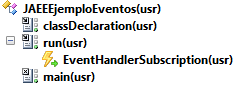
However we cannot see the code directly. What’s interesting here are the properties, which will indicate where the code is, a DLL in this case, which is responsible for processing the event:
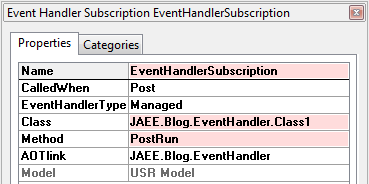
This is just a very simple example to introduce one part of the Events functionality and the new Dynamics AX integration with .NET, in the next article we’ll see in more detail all the possibilities and discuss advantages and disadvantages of using Events (also in X++) versus traditional X++ modifications.
Download