Windows 8 and Microsoft Dynamics AX Hyper-V Virtual Machine
A known challenge for all professionals working with Microsoft Dynamics AX, either consultants or technical specialists, is the need to manage many virtual machines for different environments, versions, and customers. As if disk space was not enough of a problem, choosing the right virtualization system is also confusing for many users, especially on laptops used for daily work and demos without access to a server.
Some time ago I published an article about how to run the Hyper-V virtual machines provided by Microsoft on a computer without Windows Server. This issue is solved with the new Windows 8, which allows us to run those Hyper-V virtual machines directly, without any conversion.
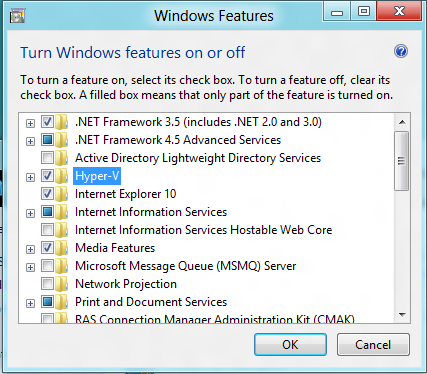
To do that, open the Control Panel and look for Turn Windows features on or off:

Windows 8 Hyper-V and Microsoft Dynamics AX - 01
From there, enable the Hyper-V feature including all child options (**).
Windows 8 Hyper-V and Microsoft Dynamics AX - 02
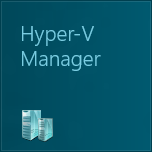
Now the Hyper-V Manager is available on your desktop:
Windows 8 Hyper-V and Microsoft Dynamics AX - 03
From this Hyper-V Manager, the steps to run the virtual machine are the same as on a Windows Server 2008 R2 machine with Hyper-V enabled:
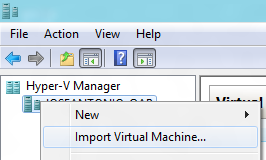
Select the server node, right-click, and choose Import Virtual Machine:
Windows 8 Hyper-V and Microsoft Dynamics AX - 05
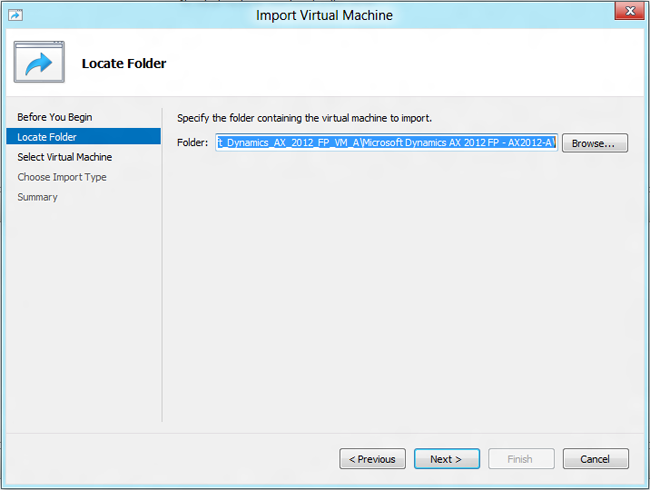
In the import wizard, select the folder where the virtual machine is downloaded and extracted. This is the folder containing the config.xml file.
Windows 8 Hyper-V and Microsoft Dynamics AX - 06
If everything goes well, the wizard will find the virtual machine in that folder and display its name:
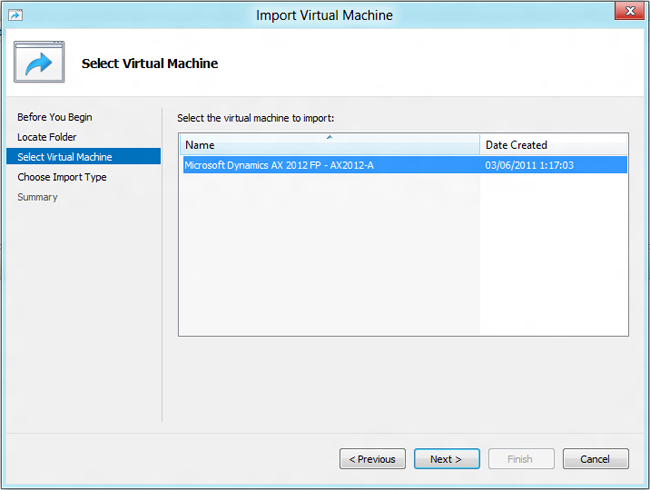
Windows 8 Hyper-V and Microsoft Dynamics AX - 07
For import options, it depends on how many times you want to import the same VM on this machine. If you plan to import it only once, leave the first option. If you plan to import multiple copies, choose the first or second option the first time, and the third option for additional copies.
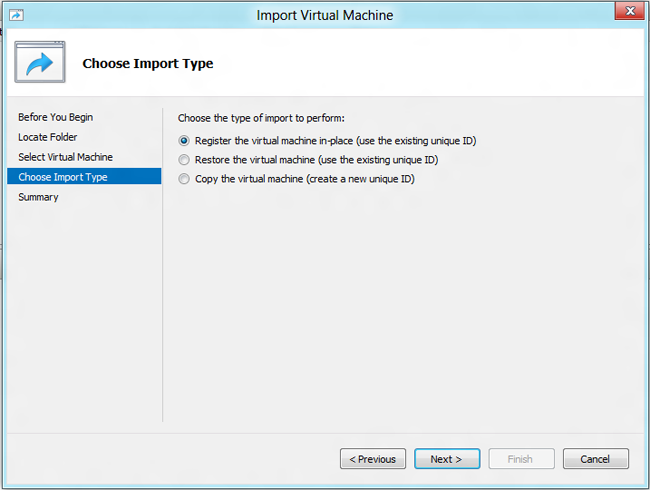
Windows 8 Hyper-V and Microsoft Dynamics AX - 08
Microsoft ships this virtual machine configured with 8 GB RAM. Since my computer did not have enough memory to assign that amount, I got a warning. In my case I solved it by reducing assigned memory to 5 GB and leaving around 2.5 GB for Windows 8 as host.
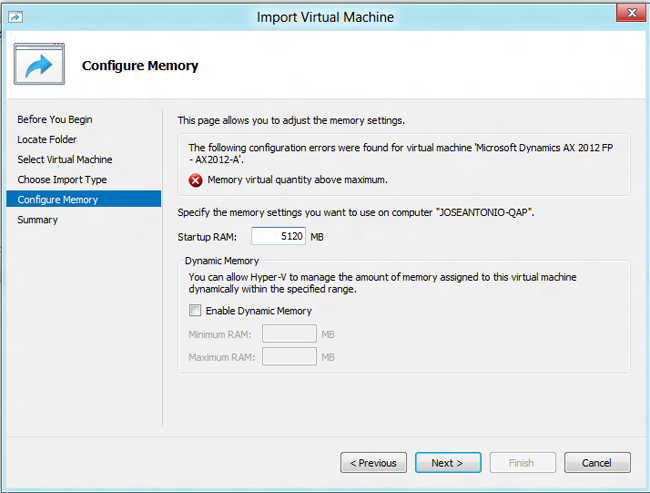
Windows 8 Hyper-V and Microsoft Dynamics AX - 09
From this point, we can connect to the imported virtual machine:
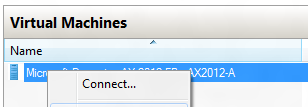
Windows 8 Hyper-V and Microsoft Dynamics AX - 10
Then click Start to boot it:
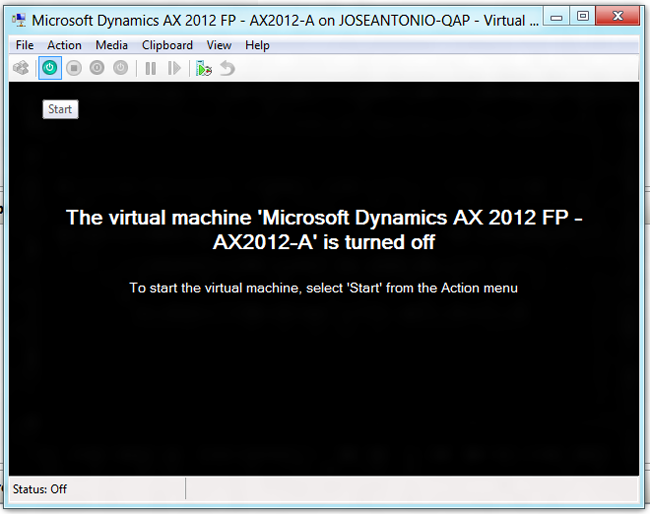
Windows 8 Hyper-V and Microsoft Dynamics AX - 11
And done. We are now ready to run demos with our brand new Windows 8:
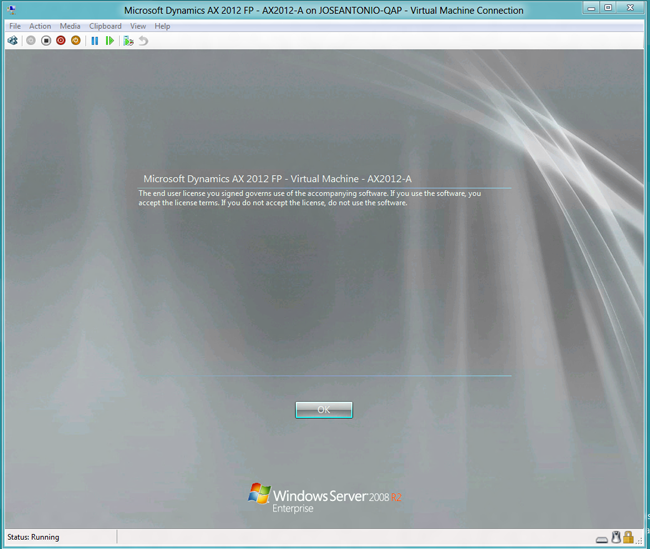
Windows 8 Hyper-V and Microsoft Dynamics AX - 12
BONUS!!
If in that initial screen (marked with **) you also enable .NET Framework 3.5 (includes .NET 2.0 and 3.0) in addition to Hyper-V, you can also install Mouse without Borders, as described in this previous post, on your new Windows 8 setup.