HowTo: Deploy Microsoft Dynamics AX 7 on Azure
The new Microsoft Dynamics AX, as we know, is only available in its Azure version for now. In any case, even when the on-premise version is published, development environments will be self-contained virtual machines that we can deploy on Azure or set up in local environments.
We’re going to take advantage of today when Scott Guthrie (Executive VP Microsoft Cloud and Enterprise) announced the availability of the public preview during Convergence 2015 EMEA in Barcelona, to see how to deploy one of those development/demo machines and start taking a look at the platform, it’s very easy.
Microsoft Dynamics Lifecycle Services
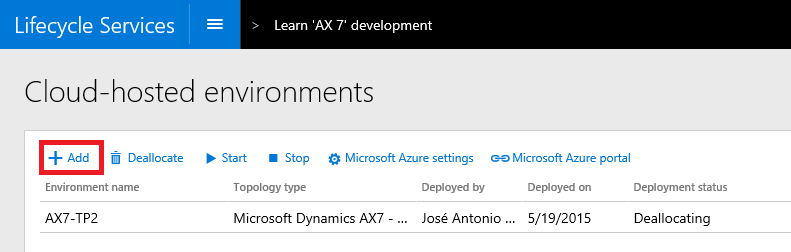
We start, as we must, in Lifecycle Services, section Cloud-hosted environments, and select Add. From here we follow the simple wizard to indicate the type of machine we want to deploy, and in the last case we select Azure as the deployment platform. We could also choose Locally to download the virtual hard disk of the machine and install it on our own servers.
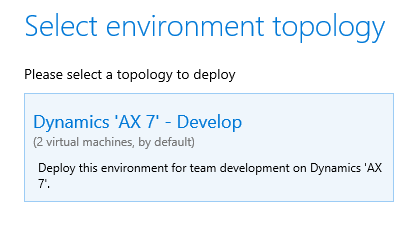
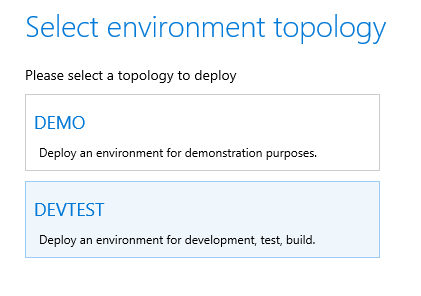
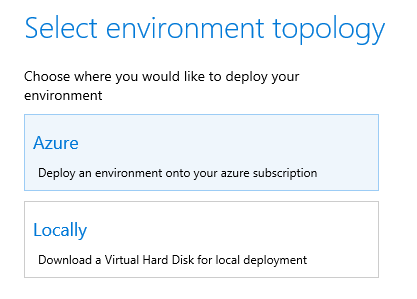
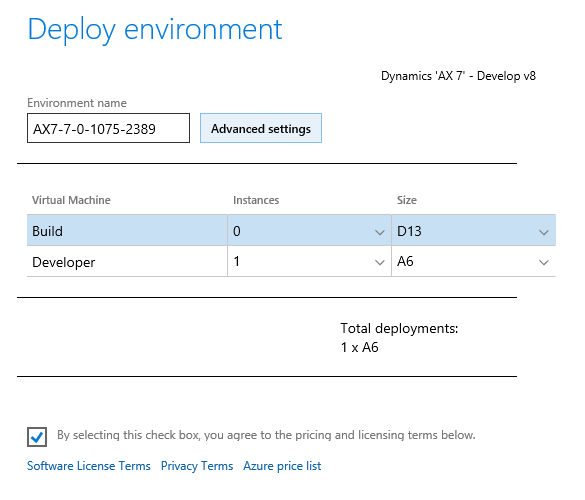
If we select Locally, the virtual hard disk is downloaded and the wizard ends. If we select Azure, the wizard continues and asks us how many machines we want to deploy and the size of them (see Azure sizes here). Obviously, the larger the size, the better the performance but also the greater consumption of our AX resources. In this demo I’m only going to deploy one development machine. If we choose to deploy Build machines at the same time, it will be automatically configured via TFS, but we’ll see that in another article.
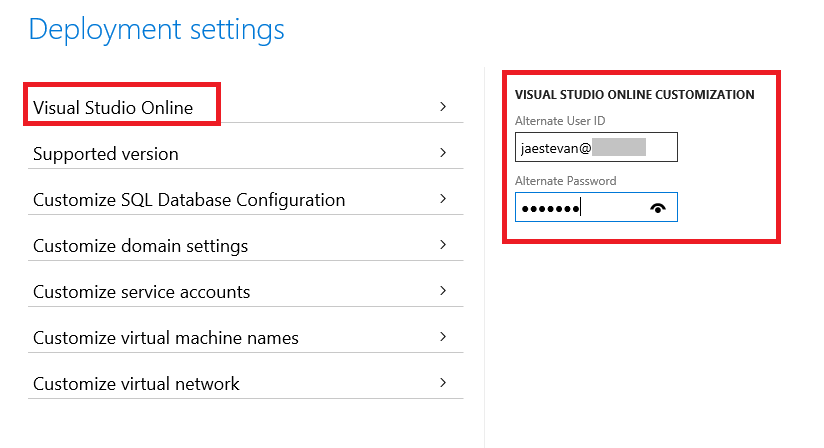
It’s possible that this may change in the future, but in the current preview version of LCS it’s necessary to press the Advanced settings button and enter our VSO login so that the source code manager configuration can be performed. If this information is not included the deployment will fail. We can take a look at these advanced options that allow us to configure many properties of the services that will be deployed on Azure.
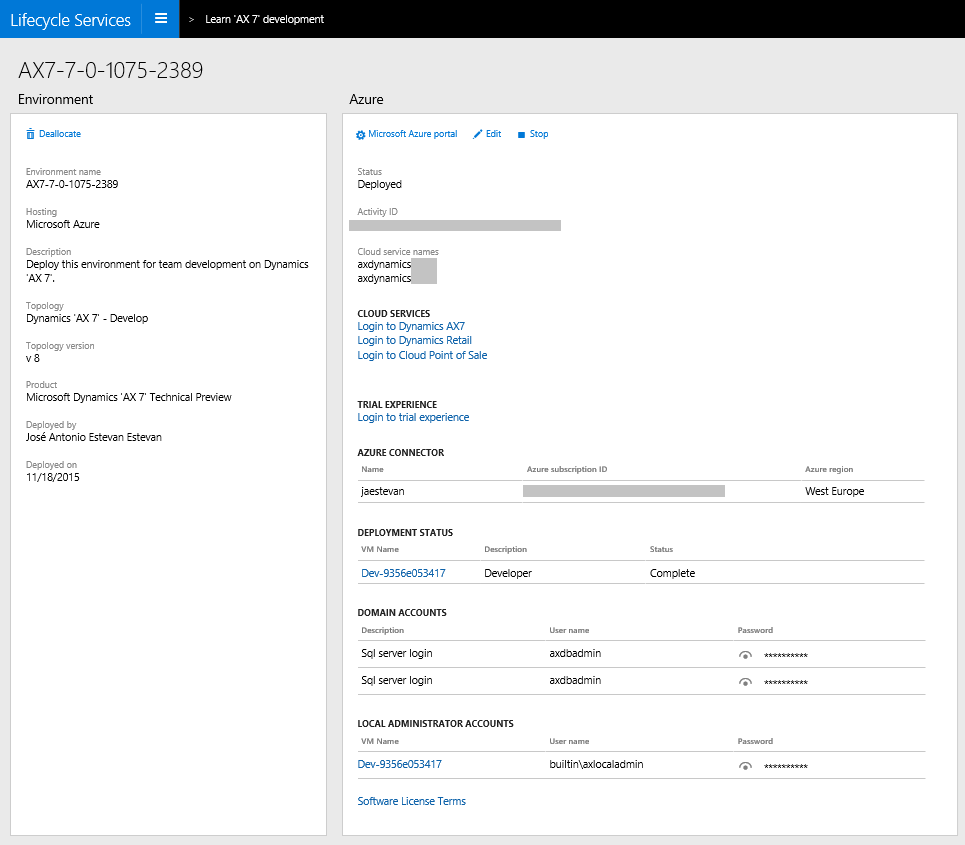
The deployment process takes a while, depending on how many machines we’re creating. In any case it can take several hours. Once finished we’ll have a page in LCS from where we can perform different actions.
- On one hand we can connect to the virtual machine by downloading an RDP file by clicking on the machine name, from where we can run development tools (Visual Studio).
- On the page we can see the users and passwords used for the Administrator user.
- We can start and stop the environment whenever we want to save Azure resources while we’re not using it.
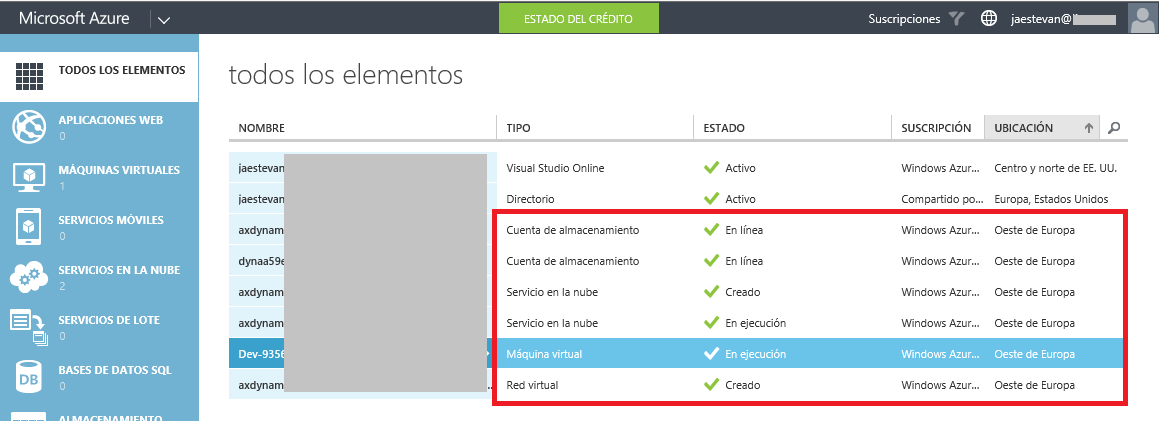
- It provides information on all deployed resources, which we can also view from the management portal of our Azure subscription.
- But most importantly, it allows us to connect directly to the hosted AX in this environment. Remember that AX is now a web, so we can connect directly to these applications using a web browser with the links available on this page (Login to Dynamics AX7, Login to Dynamics Retail, Login to Cloud Point of Sale) with the indicated users.
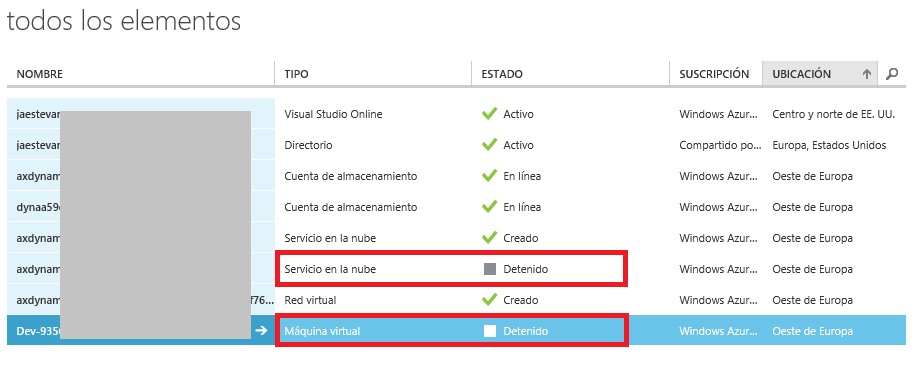
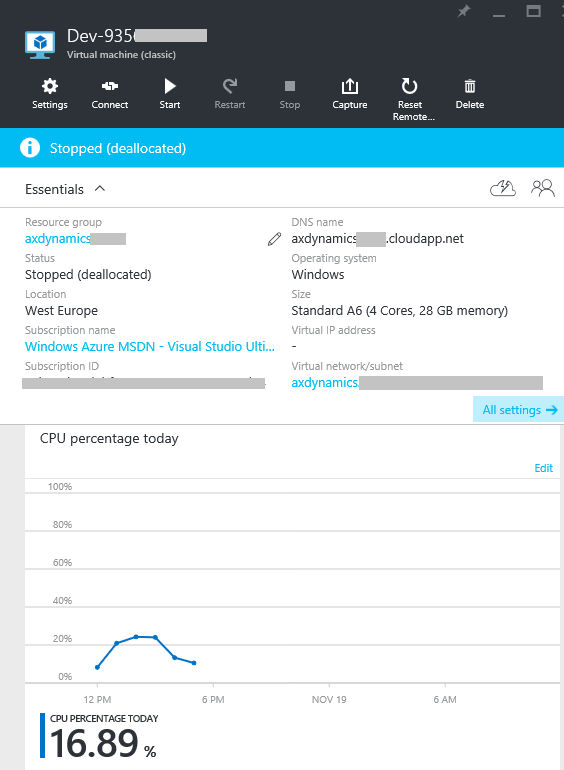
When the machine is stopped from this site in LCS, the virtual machines and services (the AOS) are also stopped, but not the storage and other services such as Active Directory, this is normal because storage is still being used even when the machine stops (our data is still on its hard drives). This is not a major problem since these services are really cheap even now, before pricing packs for Dynamics AX are published that will allow us to save ourselves all these calculations by creating a licensing plan per user regardless of resources used.
Once our development machine is deployed, we’re ready to continue with the following articles! :)