HOWTO: Expose Microsoft Dynamics AX 2012 Services on an External IIS
To expose Microsoft Dynamics AX 2012 web services outside our network, we need to install an IIS service that manages connectivity and security with “the outside world”. Installing this service depends on your network setup and ideally should be done by people specialized in these tasks (typically your infrastructure team). Once installed, connecting that IIS service to our AX instance is quite straightforward.
Before starting the installation itself, let’s check a few prerequisites.
- IIS must already be installed and running. If it is not, install it as follows:
- Most prerequisites can be installed directly from the Microsoft Dynamics AX 2012 installer, but if this fails you will need to install them manually.
- Enable the Web Services role on the server and follow the wizard.
- A restart is required at the end of the process.
- Default options are enough for a Dynamics AX installation, but you will likely need additional hardening/configuration depending on your company security requirements. Keep in mind this service is meant to be exposed to the Internet.
- Since this example uses a test server, we keep default options, which implement native Windows security through Active Directory, requiring valid credentials at connection time.
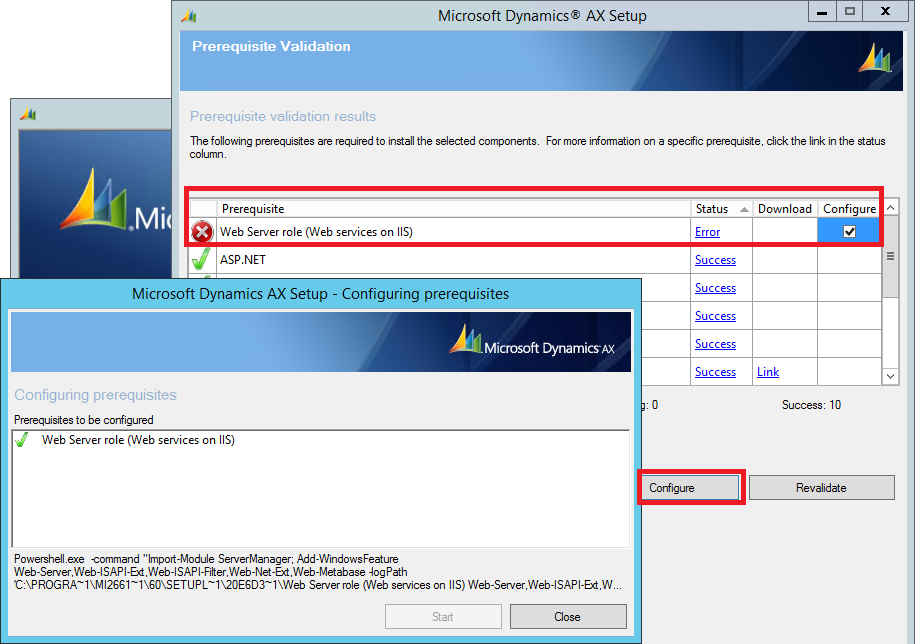
Prerequisites installation
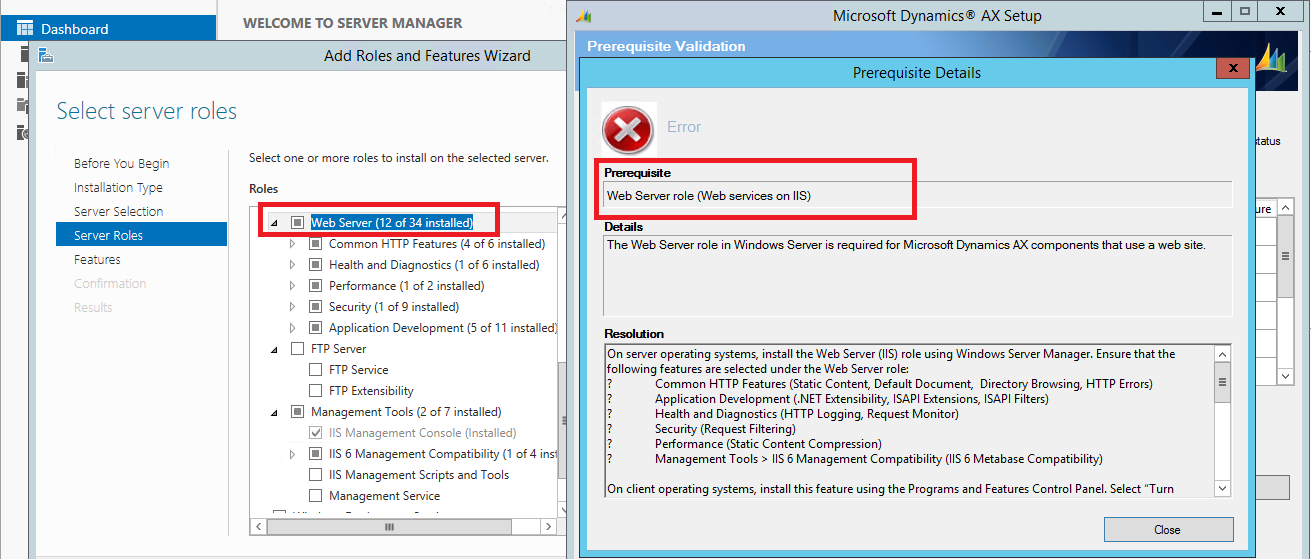
Automatic installation failed from AX2012
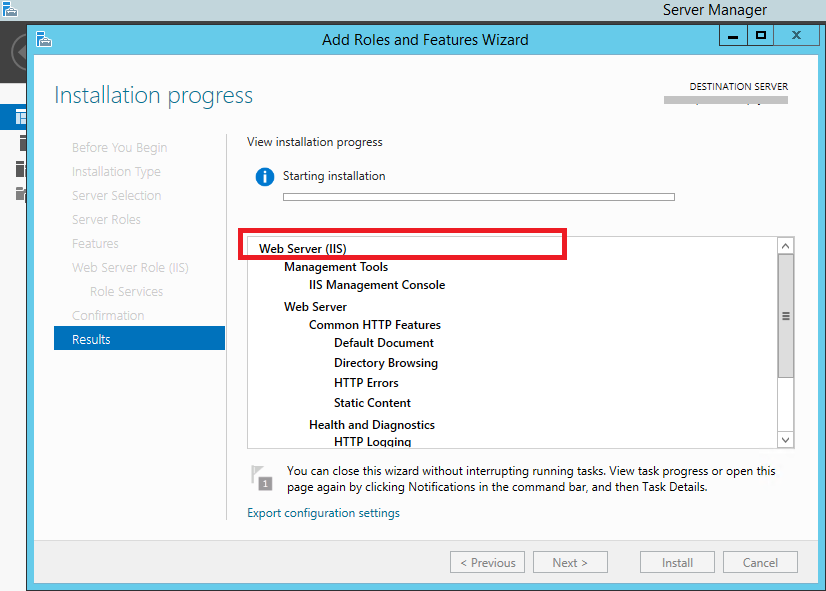
Manual IIS installation
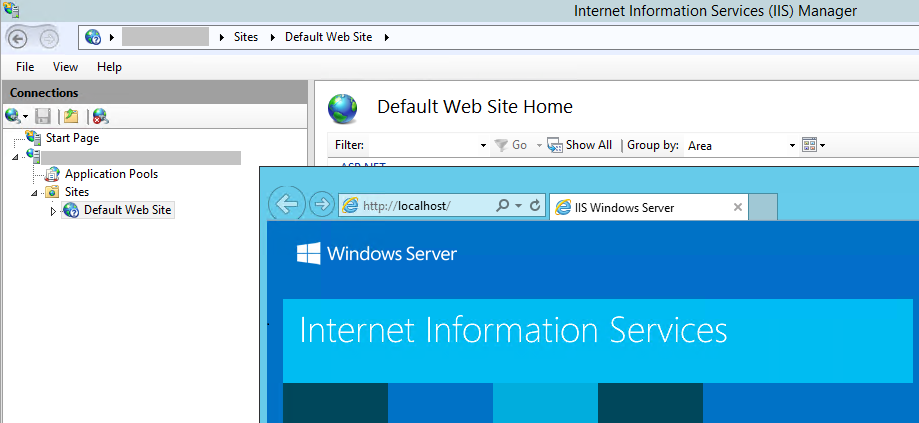
IIS instance running correctly
- Once IIS is installed and secured, start the Dynamics AX 2012 setup wizard on the same server, choose Web Services on IIS, and follow the instructions. During the wizard, you will be asked for details about your AOS instance and connection credentials, including:
- AOS instance details: name and TCP/IP + WDSL ports
- Service account configured in AX (Business connector proxy)
- IIS pool where AX services will be installed and exposed
- Service accounts used to run AOS instances
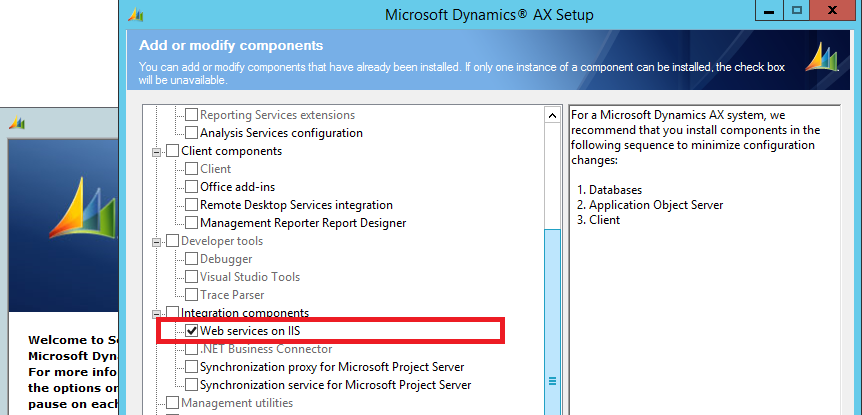
Install IIS components for AX
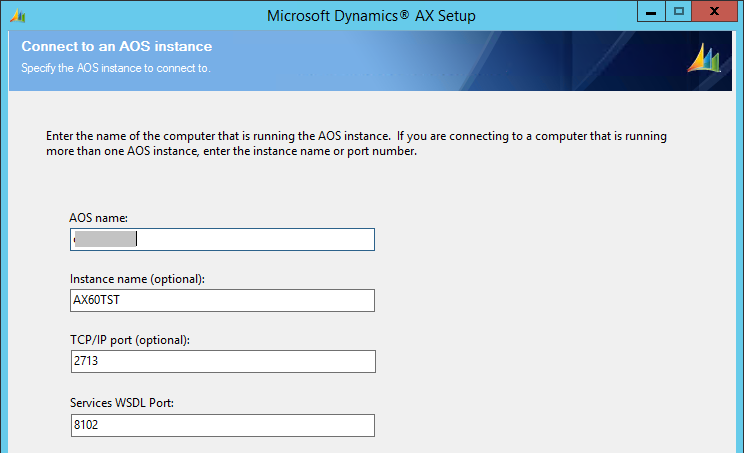
Configure target AOS
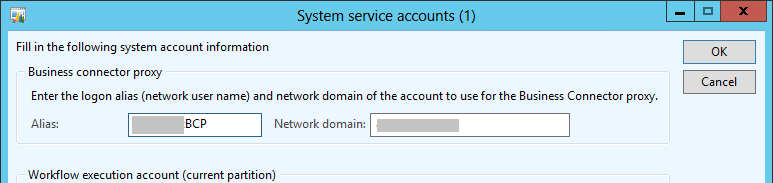
Configure service account in AX
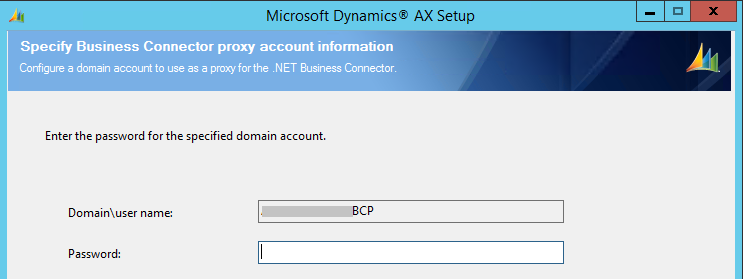
Configure BC connector account
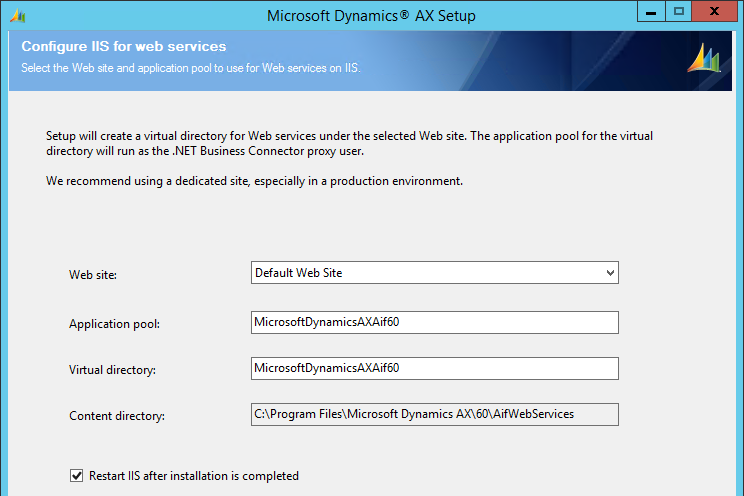
Choose an existing IIS pool
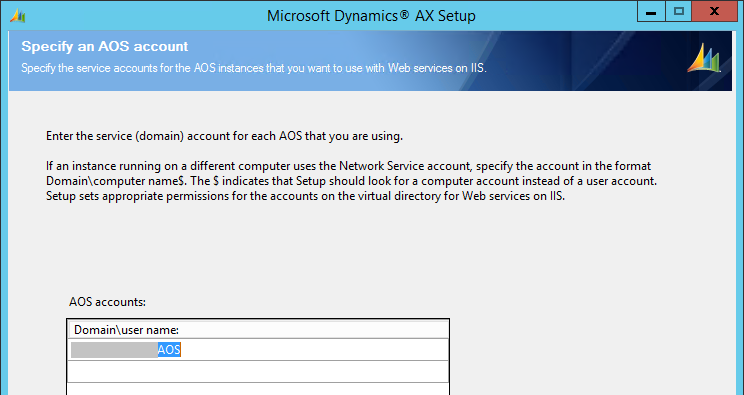
AOS service accounts
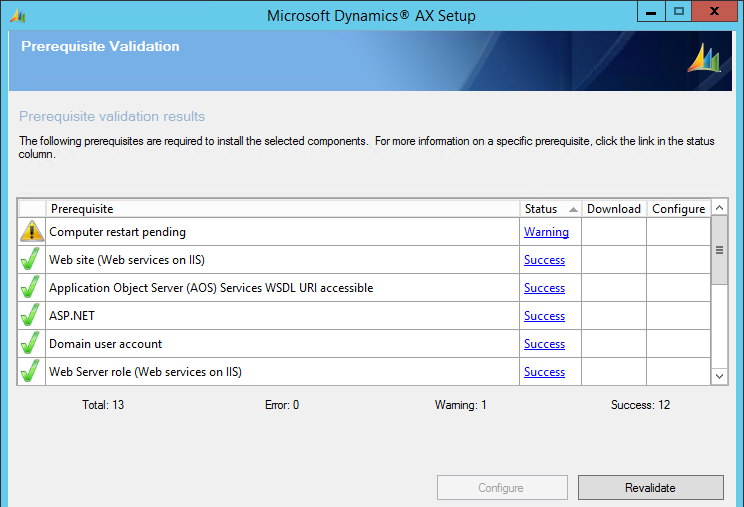
Install components
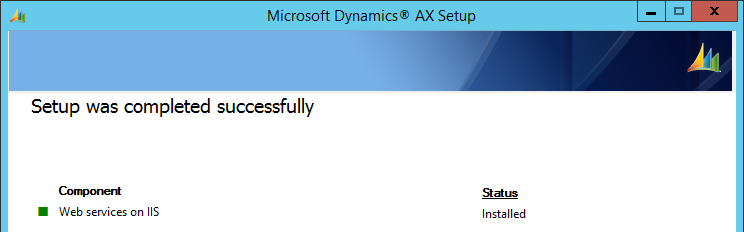
Successful installation
- The installer applies default security to the application it creates in the selected IIS pool, but you can review and configure it manually if needed:
- It creates the MicrosoftDynamicsAXAif60 application in the specified IIS pool.
- It creates a new local user group named Microsoft Dynamics AX Web Service Administrator, including the users running AOS services, as specified in setup.
- It grants permissions to that group on the IIS server local AifWebServices folder.
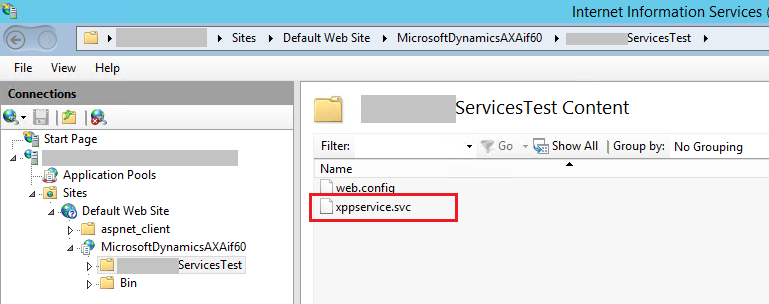
New IIS application
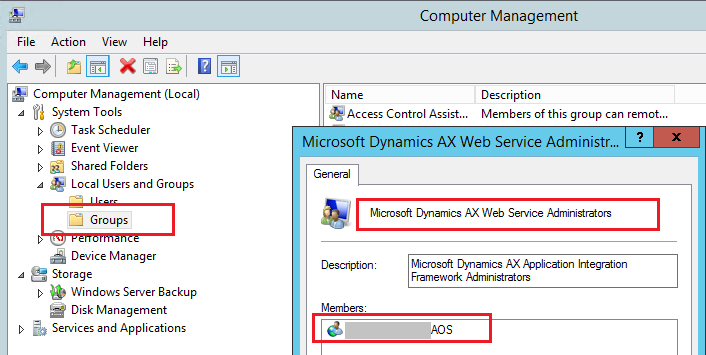
New local user group
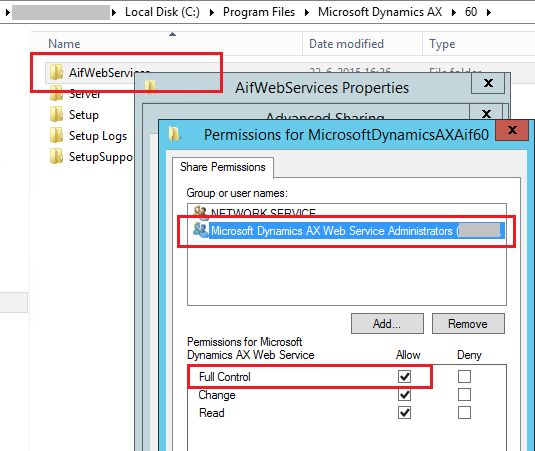
Local folder permissions
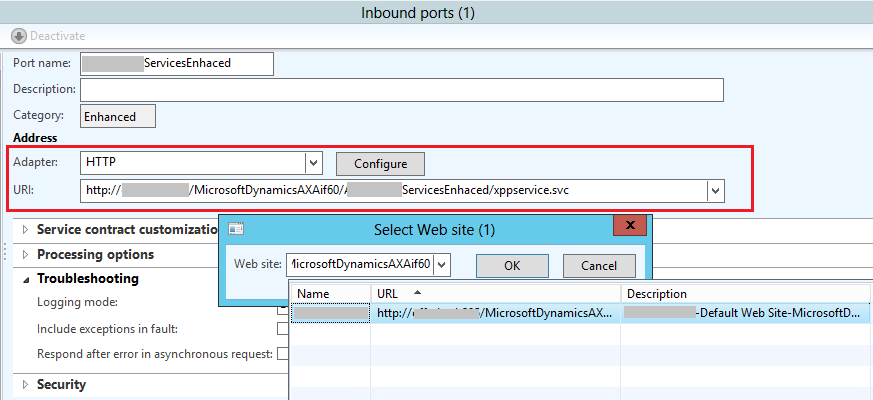
A new web service site is also created in Microsoft Dynamics AX, available at System administration > Setup > AIF > Web sites. We will use that site to bind it to an inbound port and expose methods in our services, as follows:
- Create a new inbound port and select:
- Adapter: HTTP
- URL: Select the newly created application from the list
- Add the service operations to expose with the Service operations button
- Apply the remaining inbound port settings, such as validations or restrictions as required. In my case I restrict connections to one AX user group and a single company.
As shown in the screenshots below, operations exposed this way can be consumed from an external Visual Studio application through the IIS app we created:
Configure inbound port
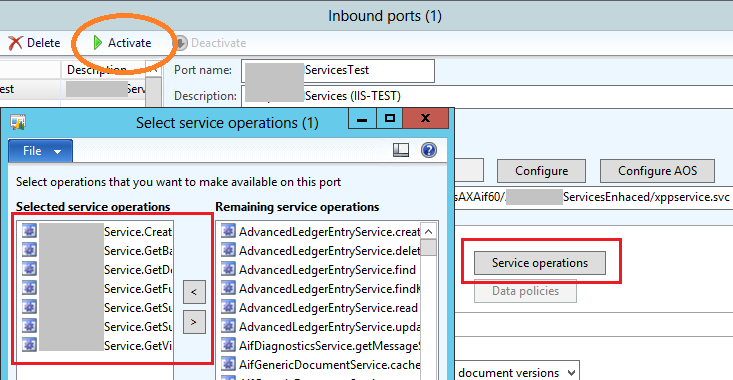
Expose service methods
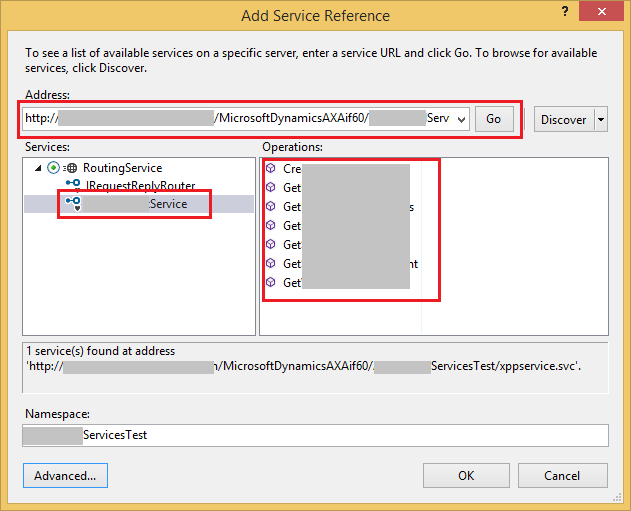
Consume from Visual Studio
I hope this step-by-step guide has been useful and can serve as reference for future installations ;)