Microsoft Dynamics AX 2012 Label Codes Using Team Foundation Server Branches (ALM-VIII)
Fortunately for us, label integration with TFS in Microsoft Dynamics AX 2012 improved enormously to the point of becoming almost transparent, which is a significant improvement over previous versions. When we create a label in an AX instance managed through TFS, a temporary personal label code is created that is unique only within that instance (in the form @$XXX).
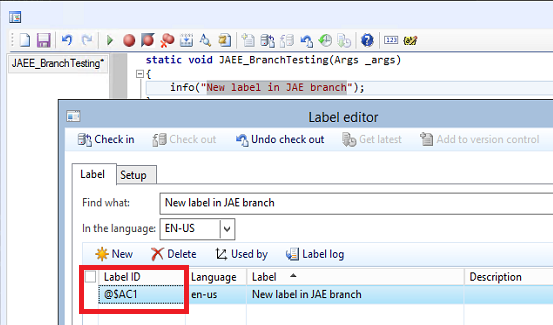
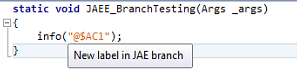
The only thing to keep in mind is that at check-in time we must include both the object that uses the temporary label and the label file where that code was created. At that moment, the TFS integration detects the temporary code and replaces it with a final code coherent with the label file version stored on the server.
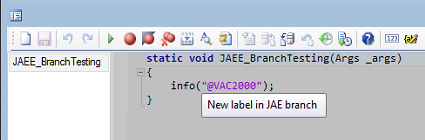
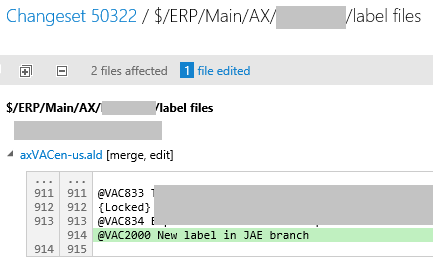
So far everything is fine, but things get more complicated when we use TFS branches, because when checking in to a branch, the server version may not be an integrated version for all developers. For example, this happens if we use a branch-per-developer model as discussed in the previous article. In that case the solution is to instruct AX to use a specific label range for each branch, so we can make sure there will be no conflicts with these codes during merge into the consolidated repository.
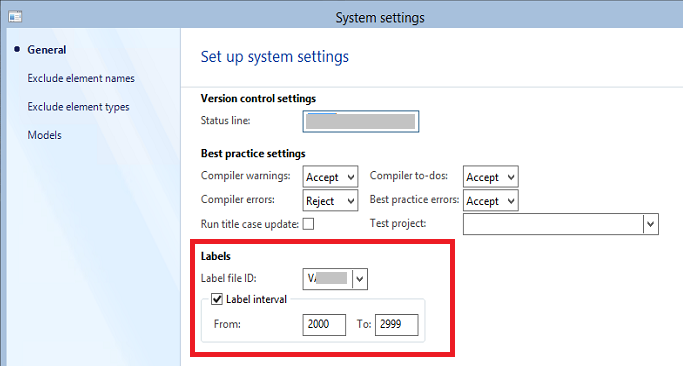
For example, in the screenshot we tell AX to use the 2XXX range in this AX instance. The problem is that this configuration change produces a pending change for object VCSDef.xml that we must resolve somehow. We can leave it pending forever, but ideally we want to get rid of it. From AX, that would normally mean either confirming it with a check-in or discarding it with undo, which restores the file to its previous state and therefore reverts the configuration change we just made.
Neither of these solutions works for us.

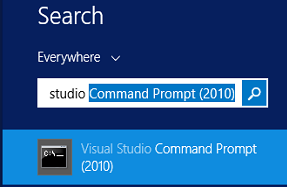
Luckily, Palle Agermark found a third, very simple option available through the Visual Studio command console that allows us to remove a pending change without checking it in and without undoing it. The full command syntax is documented on MSDN, and the Visual Studio command console can easily be found using Windows search.
In very simplified terms, we can use a command like the following to detect pending changes between branches:
tf merge /candidate BRANCH-ORIGIN BRANCH-DESTINATION /recursive
For example:
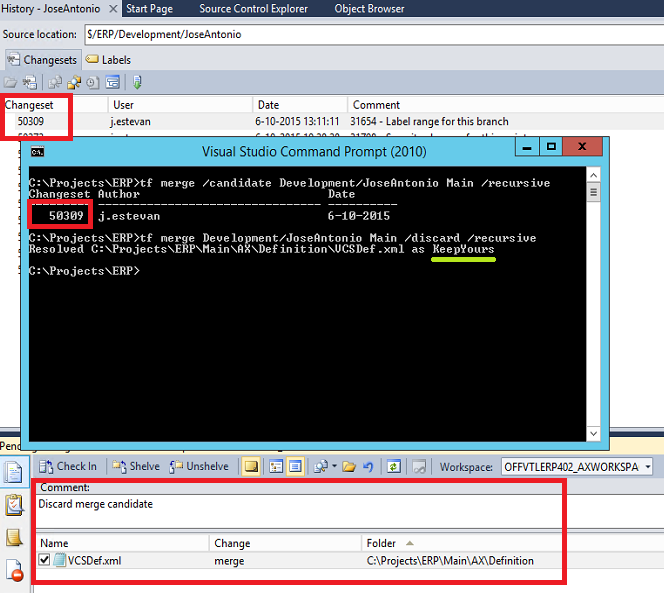
tf merge /candidate Development/JoseAntonio Main /recursive
We can target a specific change set, but because I only have this one pending case, I can discard it generally like this:
tf merge /candidate Development/JoseAntonio Main /discard /recursive
This generates another pending change, but this one must be confirmed with a check-in so the unwanted pending change disappears permanently.
And from that point on, the merge tool no longer finds the unwanted pending change:
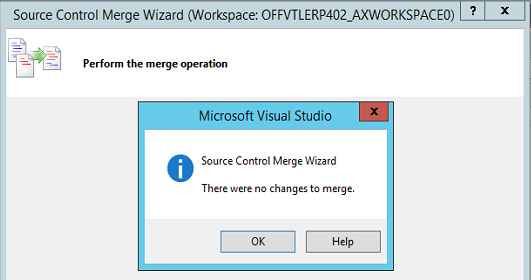
This process must be repeated in all development environments, assigning different label ranges per developer depending on our branch strategy, so that each branch produces label codes that will not be duplicated when changes are consolidated into the main branch. Since the numeric ranges differ, TFS can resolve this case automatically.
Stay tuned, because in the next chapter we start with build processes! :)
Posts in this series
- Automatic BUILD Processes with TFS and AX 2012 (2/2) (ALM-X)
- Automatic BUILD Processes with TFS and AX 2012 (1/2) (ALM-IX)
- Microsoft Dynamics AX 2012 Label Codes Using Team Foundation Server Branches (ALM-VIII)
- Version Control in Microsoft Dynamics AX 2012 Using Team Foundation Server Branches (ALM-VII)
- Source Code Control with TFS in Microsoft Dynamics AX 2012 (ALM-VI)
- Read Team Foundation Server Items from Microsoft Dynamics AX 2012 (ALM-V)
- Download Microsoft Dynamics AX 2012 Application from Team Foundation Server (ALM-IV)
- Microsoft Dynamics AX 2012 ALM with Team Foundation Server (ALM-III)
- Team Foundation Server 2010 Installation (ALM-II)
- Microsoft Dynamics AX 2012 Application Lifecycle Management (ALM-I)