Read Team Foundation Server Items from Microsoft Dynamics AX 2012 (ALM-V)
I am briefly returning to one of the longest series of posts on this blog so far: AX 2012 integration with Team Foundation Server, not only for source code control but also as a tool to manage the team’s work. In previous chapters we already saw how to install and configure TFS (this changes between versions, and we also saw that nothing needs to be installed when using the cloud version), and how we can create TFS WorkItems to manage work from that tool.
When performing a code check-in from Microsoft Dynamics AX 2012, AX offers the option to associate that check-in with TFS work items. This is almost mandatory if we want a strong audit trail for why each change is being made, but the tool AX offers is fairly limited. Thanks to the TFS API, however, we can extend it and even build our own tools and reports in AX 2012 by retrieving data from the TFS server itself (yes, also from Visual Studio Online).
One very useful feature that can save a lot of development time is the ability to execute, from AX 2012, queries already stored and used in TFS. This gives us the same views in both environments and makes daily work easier. I will go deeper into this in future posts on the topic, but here is a sample that shows how to do it.
NOTE: For these examples to work, the Visual Studio SDK matching the TFS version we are using must be installed. In my case I use the 2013 SDK because I am working with Visual Studio Online, but this may vary from one environment to another. You can download it here:
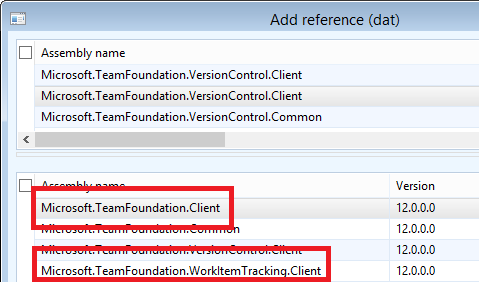
After installing the SDK, add the required references into the AOT so AX 2012 can use them:
Now the code:
static void JAEE_TFSPROXY_EjecutarQueryTFS(Args _args)
{
    System.Uri tfsUri = new System.Uri("https:///DefaultCollection");
    str tfsProject = "Libro AX2012";
    str tfsFolder = "My Queries";
    str tfsQuery = "Todas Features";

    Microsoft.TeamFoundation.Client.TfsTeamProjectCollection teamProjectCollection;
    Microsoft.TeamFoundation.WorkItemTracking.Client.WorkItemStore workItemStore;
    Microsoft.TeamFoundation.WorkItemTracking.Client.ProjectCollection projectCollection;
    Microsoft.TeamFoundation.WorkItemTracking.Client.Project project;
    Microsoft.TeamFoundation.WorkItemTracking.Client.QueryHierarchy projectQueryHierarchy;
    Microsoft.TeamFoundation.WorkItemTracking.Client.QueryFolder queryFolder;
    Microsoft.TeamFoundation.WorkItemTracking.Client.QueryDefinition queryDefinition;
    Microsoft.TeamFoundation.WorkItemTracking.Client.WorkItemCollection workItemCollection;
    Microsoft.TeamFoundation.WorkItemTracking.Client.WorkItem workItem;
    Microsoft.TeamFoundation.WorkItemTracking.Client.WorkItemType workItemType;

    System.Exception ex;
    System.Type workItemStoreType;
    ClrObject parameters;
    ClrObject enumerator;
    str title, state, type;

    setPrefix(strFmt("%1 > %2 > %3", tfsProject, tfsFolder, tfsQuery));

    try
    {
        // Collection
        teamProjectCollection = new Microsoft.TeamFoundation.Client.TfsTeamProjectCollection(tfsUri);
        workItemStoreType = CLRInterop::getType('Microsoft.TeamFoundation.WorkItemTracking.Client.WorkItemStore');
        workItemStore = teamProjectCollection.GetService(workItemStoreType);
        projectCollection = workItemStore.get_Projects();

        // Project
        project = projectCollection.get_Item(tfsProject);
        projectQueryHierarchy = project.get_QueryHierarchy();

        // Query
        queryFolder = projectQueryHierarchy.get_Item(tfsFolder);
        queryDefinition = queryFolder.get_Item(tfsQuery);

        // Query @Parameters
        parameters = new ClrObject("System.Collections.Generic.Dictionary`2[System.String,System.String]");
        parameters.Add('project', tfsProject);

        // Run Query
        workItemCollection = workItemStore.Query(queryDefinition.get_QueryText(), parameters);

        enumerator = workItemCollection.GetEnumerator();
        while (enumerator.MoveNext())
        {
            workItem = enumerator.get_Current();
            workItemType = workItem.get_Type();
            type = workItemType.get_Name();
            title = workItem.get_Title();
            state = workItem.get_State();

            info(strFmt("[%1 > %2] %3", type, state, title));
        }
    }
    catch (Exception::CLRError)
    {
        ex = ClrInterop::getLastException();
        if (ex != null)
        {
            ex = ex.get_InnerException();
            if (ex != null)
                error(ex.ToString());
        }
    }
}
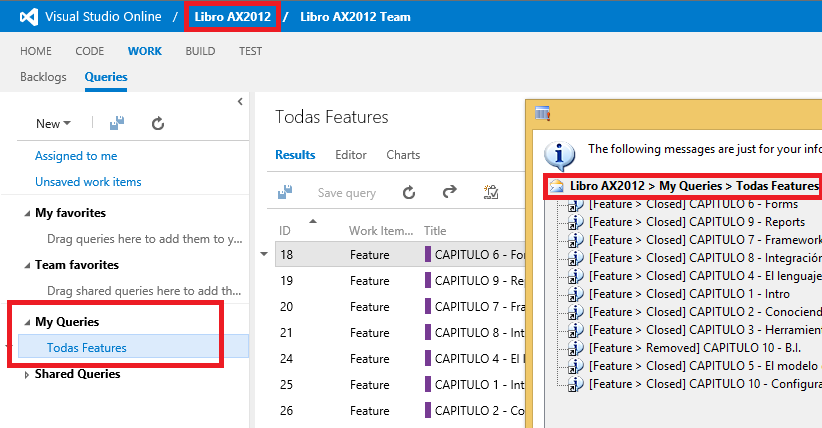
The result looks like this:
In the following chapters we will continue covering the advantages of using TFS, how to interact with it from AX 2012, and how to keep improving our integration toolset from X++. This code is simplified as much as possible to keep it easy to follow, but there is a lot of useful information here that can be reused for many other tasks. :)
Posts in this series
- Automatic BUILD Processes with TFS and AX 2012 (2/2) (ALM-X)
- Automatic BUILD Processes with TFS and AX 2012 (1/2) (ALM-IX)
- Microsoft Dynamics AX 2012 Label Codes Using Team Foundation Server Branches (ALM-VIII)
- Version Control in Microsoft Dynamics AX 2012 Using Team Foundation Server Branches (ALM-VII)
- Source Code Control with TFS in Microsoft Dynamics AX 2012 (ALM-VI)
- Read Team Foundation Server Items from Microsoft Dynamics AX 2012 (ALM-V)
- Download Microsoft Dynamics AX 2012 Application from Team Foundation Server (ALM-IV)
- Microsoft Dynamics AX 2012 ALM with Team Foundation Server (ALM-III)
- Team Foundation Server 2010 Installation (ALM-II)
- Microsoft Dynamics AX 2012 Application Lifecycle Management (ALM-I)