Source Code Control with TFS in Microsoft Dynamics AX 2012 (ALM-VI)
In previous chapters of this series we already discussed how to install and/or configure our Microsoft Team Foundation Server instance, and also how to use it to manage our tasks and requirements. This article is the final part focused on the basic integration functionality between Microsoft Dynamics AX 2012 and TFS, so we can start tackling more advanced topics in the next posts.
In this article we will see how to work with TFS for source code version control (VCS), which is the first step to use the most advanced features of the system in terms of ALM capabilities. Basically, version control ensures that any change made to system objects is recorded, including date, author, which other objects were changed at the same time, and why (through check-in comments). This allows us to revert changes, return to previous versions, compare the current object state with older versions, review the changes made by a developer on a specific day (for code reviews), associate changes to a specific task to see everything needed to complete it, and much more. The three most obvious operations required by any version control system are: adding new objects, check-in and check-out (translated in AX as Protect and Unprotect) and Sync.
Add New Objects
In Microsoft Dynamics AX, not all code is added to source control, unlike other VCS tools. It would not make sense to add all standard application objects because that would consume significant resources. Therefore, only new objects or standard objects that have been modified are added, assuming that if an object is not under version control, it is a standard object never modified. In short, all objects not part of standard layers/models are added. To add an object to source control, TFS in this case, right-click it and select Add to version control. It is important to remember this operation because it is not automatic. If an object is not added to source control, it causes errors and inconsistencies when other developers sync and do not receive all objects, so it is very important to make this a habit and add objects to TFS as soon as possible, ideally right after creating them.
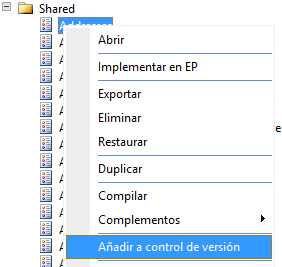
As shown in the image above, MorphX projects are also objects and therefore must be added manually. It is not recommended to add private projects to source control. In any case, in TFS they cease to be private and are stored as another object.
Check-Out (Unprotect)
When we need to modify an existing object managed by version control, we must first check it out so editing is allowed. If at some point we notice options to edit an object (for example Delete or Duplicate in the context menu) have disappeared, it is probably because the object is protected and cannot be edited until check-out. In this case the X++ editor appears grayed out, and from the editor itself we can check out the object using the corresponding toolbar buttons.
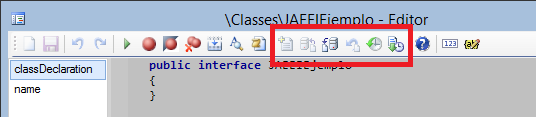
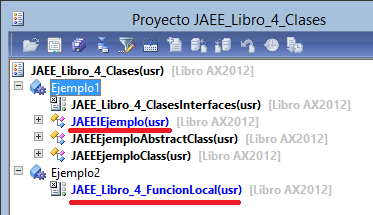
When we use the Protect option on an object, an InfoLog message warns that the object is available for editing and has been added to pending version control changes. From that moment, we can freely modify it; those changes are not committed to source control until we do the opposite action: check-in. Checked-out objects are shown with a different color in the AOT, unless configured otherwise in version control parameters:
If after checking out and modifying an object we decide those changes are no longer needed, we can use Undo checkout (in Visual Studio: Undo Pending Changes) to restore the object to the version stored on the server, discarding all local changes and protecting it again.
Check-In (Protect)
When we finish modifying an object and want to save those changes in source control so other developers can receive them during sync, promote them between branches, include them in the next build, etc. (we will discuss this in later chapters), we perform the opposite action: Protect the object, or do a check-in.
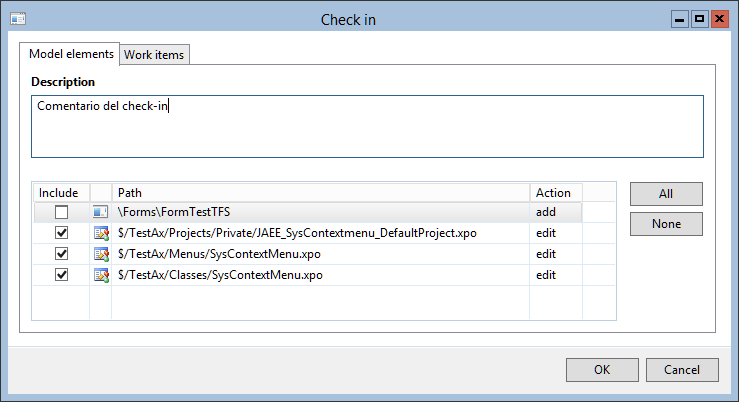
In the check-in dialog, we can choose which objects to protect. All selected objects will become part of a change set in TFS that we can consult at any time. It is also highly recommended to include a comment explaining the reason for changes, which will be stored in the TFS change set and will be very useful later. This change set can be associated with one or more TFS work items (tasks, bugs, User Stories, etc.) through the Work Items tab, so we can consult all changes required for a specific task, the date, the developer who made them, in which release they reached production, and so on.
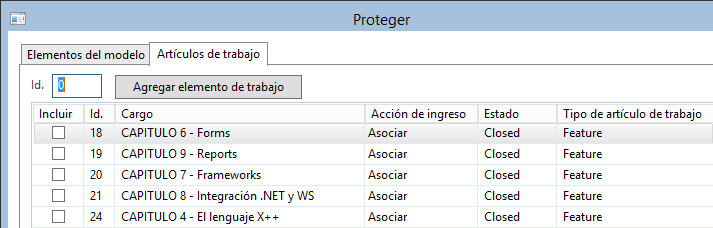
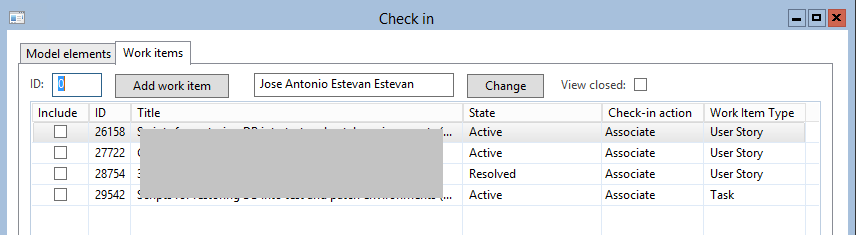
This form is quite simple in its default state. Too simple for daily usage, I would say. But as I explained in a previous post, it can be customized. For example, in my team we decided every change set must be linked to exactly one work item. To enforce that policy, we added validations to the form and also added filters by user and options to show/hide closed work items. If that sounds useful, review class SysVersionControlWorkItemProviderTFS and form SysVersionControlCheckIn, and also community blogs where other options are published :)
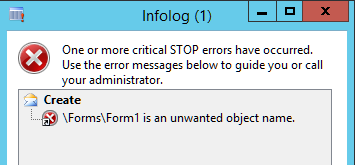
When configuring VCS in MorphX in previous chapters, we saw we can set restrictions on what TFS accepts as valid changes. It is very common to block certain object types (for example Jobs in production, or web elements when Enterprise Portal is not used) or certain object names (default names such as Table1 or CopyOfXXX). If one of our changes does not satisfy those restrictions, we get an error and check-in is cancelled:
These are the basic options offered by any version control system to manage code. They are tasks any developer performs several times a day and eventually become part of routine. Just with this, we already gain a lot versus having no change control at all. However, it is normal to want to get more value out of this system. Below are the most common options we can perform in MorphX:
Synchronize
According to Microsoft’s supported configuration for using TFS with Microsoft Dynamics AX, each developer should work in an isolated environment. On their own server, without sharing AOS or databases. This has many advantages we will not discuss now, but it raises the question of how to obtain work done by other developers in their own environments. Since those changes are stored in TFS, we can use Version control > Synchronize to download and import into AX all change sets we did not create ourselves, synchronizing our environment with the server. If we check Force in this form (as we saw in chapter IV of this series), we download the latest version of all objects modified in the application. This is very useful the first time we start using a development environment for a given application or client, but it is a long process that requires compile, DB sync, etc. If we do not check this option, we only download change sets done after the last synchronization. This process is much faster, so we can run it often to ensure we work with the latest version, including changes made by others. We can also get the latest version (equivalent to Synchronize) of a single object by right-clicking it and choosing Get latest.
Pending Changes
When we have been working for a while on a large development, it is easy to lose track of how many objects we modified, or whether any are missing from our projects. To help with this, we have Version control > Pending objects, which shows all modified objects not yet checked in.
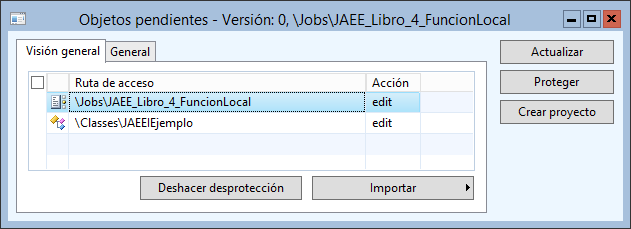
From this window we can perform several actions, such as starting a check-in or undoing checkout if an object is checked out by mistake. The most interesting one is the possibility to create a project including all those objects. The Import option will re-import into our AX instance the XPO files stored in this machine’s local TFS repository. This has limited use cases, so we will not detail it now.
Change Sets
We already mentioned any check-in is associated to a change set stored in TFS. These can be reviewed from Visual Studio (from Source Control Explorer in Team Explorer) and from TFS web (Code > Changesets inside our project), or from Visual Studio Online. However, for us it is much more convenient to consult them directly from the Microsoft Dynamics AX 2012 development environment in Version control > Changes:
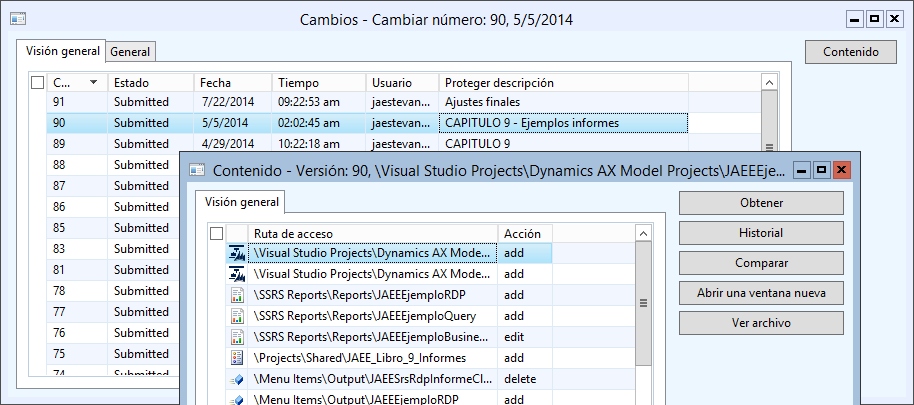
From this form we can see all change sets in TFS. Some may be ours, others may have arrived during synchronization. By selecting one change set, we can inspect its contents and see all objects included in the check-in, plus date, time, user, and comment.
From that content form we can Get any object (overwriting our current version with the version from that change set downloaded from TFS), view object History, Compare that version with others, or open it directly in AOT.
History
The History window can also be opened by right-clicking any AOT object managed by version control. It also shows change sets, but focused on the selected object, with all changes the object has undergone, actions performed, date/time, etc., and even which tasks required modifying it.

On each change set we can perform the same tasks as above, the most common being Compare one version with another to understand object evolution over time. This is more powerful than it seems because with good version control we can compare production version vs current version and estimate update impact.
Conclusions
After this article, I think we can throw away the myth that “Using version control in AX is useless for small teams” and also that “the overhead does not pay off.” Everything seen so far shows that using a VCS is a necessity, even for a single developer. Being able to store every small change, associate each change set to a task, and undo undesired changes are things we may need at any time, whether we are one or fifty developers.
On the other hand, as seen, day-to-day overhead is not really such. These actions become natural as part of the process. We are not creating extra work; quite the opposite. Imagine a shared AOS environment, typical when TFS is not used: how much would it cost to return to a previous version after an error? In the best case, if a previous version even exists. And what if nobody exported an XPO before making that risky change? The only extra work with TFS is installing and maintaining TFS itself, which can be greatly reduced by using cloud version Visual Studio Online.
Obviously, the need is even greater in large teams. In large, multidisciplinary teams like ours, with internal and external developers (partners, ISV developments, etc.) across countries, senior and junior members, and so on, it is crucial to review code, decide which changes go to test and which do not, rollback when needed, identify who changed an object, when, and why (through check-in comments and linked tasks), and much more.
Conclusion:

Posts in this series
- Automatic BUILD Processes with TFS and AX 2012 (2/2) (ALM-X)
- Automatic BUILD Processes with TFS and AX 2012 (1/2) (ALM-IX)
- Microsoft Dynamics AX 2012 Label Codes Using Team Foundation Server Branches (ALM-VIII)
- Version Control in Microsoft Dynamics AX 2012 Using Team Foundation Server Branches (ALM-VII)
- Source Code Control with TFS in Microsoft Dynamics AX 2012 (ALM-VI)
- Read Team Foundation Server Items from Microsoft Dynamics AX 2012 (ALM-V)
- Download Microsoft Dynamics AX 2012 Application from Team Foundation Server (ALM-IV)
- Microsoft Dynamics AX 2012 ALM with Team Foundation Server (ALM-III)
- Team Foundation Server 2010 Installation (ALM-II)
- Microsoft Dynamics AX 2012 Application Lifecycle Management (ALM-I)