PowerShell and Startup Commands in Dynamics AX 2012 (PS-III)
Table of contents
In the first posts of this series, we learned PowerShell fundamentals and how to use extra cmdlet libraries, including those shipped with Microsoft Dynamics AX 2012, enabling many operations that simplify administration and maintenance.
But to use PowerShell in real DevOps systems, we must combine everything and use both AX-specific cmdlets and standard PowerShell capabilities to execute all required steps in a typical AX deployment and in many maintenance tasks.
Let us start with standard PowerShell
For example, we can use base PowerShell commands to check whether an AOS with a given name exists in the system, and start it if needed (likely not the best possible implementation, but illustrative for this case):

$AxAOSName = "MicrosoftDynamicsAX"

$svcAOS = Get-Service AOS60\* | Where { $_.DisplayName.EndsWith($AxAOSName) } -ErrorAction SilentlyContinue
if (-not ($svcAOS.Length -gt 0))
{
    throw "AOS service " + $AxAOSName + " can not be found."
}

Write-Host "AOS:" $svcAOS.DisplayName

if ($svcAOS.Status -ne 'Running')
{
    Start-Service $svcAOS -PassThru
}
Run Windows console commands (cmd)
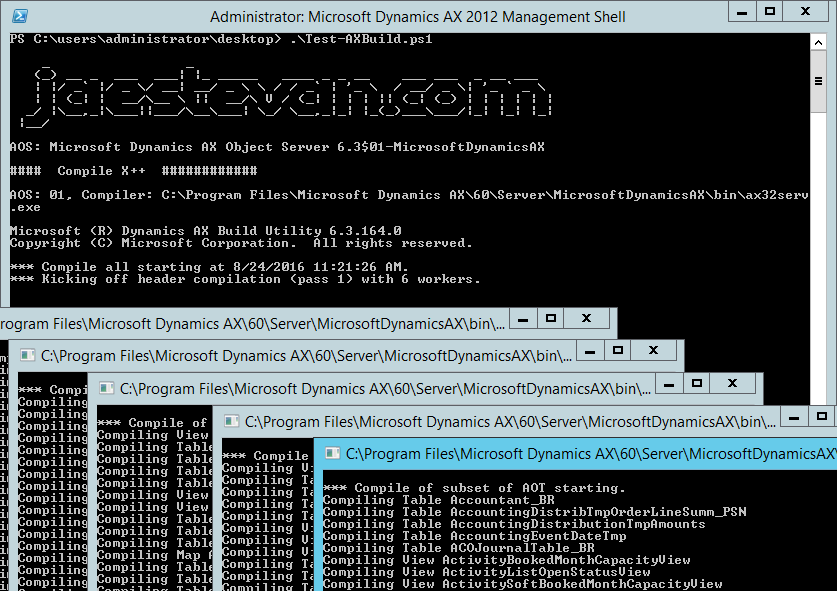
However, to perform a mandatory action in any DevOps strategy, such as compiling X++ code, we need to run another application from PowerShell. Specifically, we need to run AxBuild, the multi-threaded compiler executed from command prompt. We can integrate it as another step in our scripts like this:
$axCompiler = Join-Path $AxServerBin "\ax32serv.exe"
$axBuild = Join-Path $AxServerBin "\AxBuild.exe"

$axAosInstance = $svcAOS.Name.Split("$")[1]

Write-Host ("AOS: " + $axAosInstance + ", Compiler: " + $axCompiler)

& $axBuild 'xppcompileall' /compiler="$axCompiler" /log="$LogPath" /altbin="$AxClientBin" /aos="$axAosInstance"
Which gives a result similar to this:
Run ax32.exe with startup parameters - SysStartupCmd
After compiling X++ code, typical next steps are CIL compilation and database synchronization. These actions can only be started from the AX 2012 client (ax32.exe), so we need to trigger that from PowerShell. There are several ways to start AX client from PS; the most common are:
Passing startup parameters supported by class SysStartupCmd. The number of available commands in this class depends on AX version (even minor versions), but they can be checked in official docs or, more easily, directly in source code:
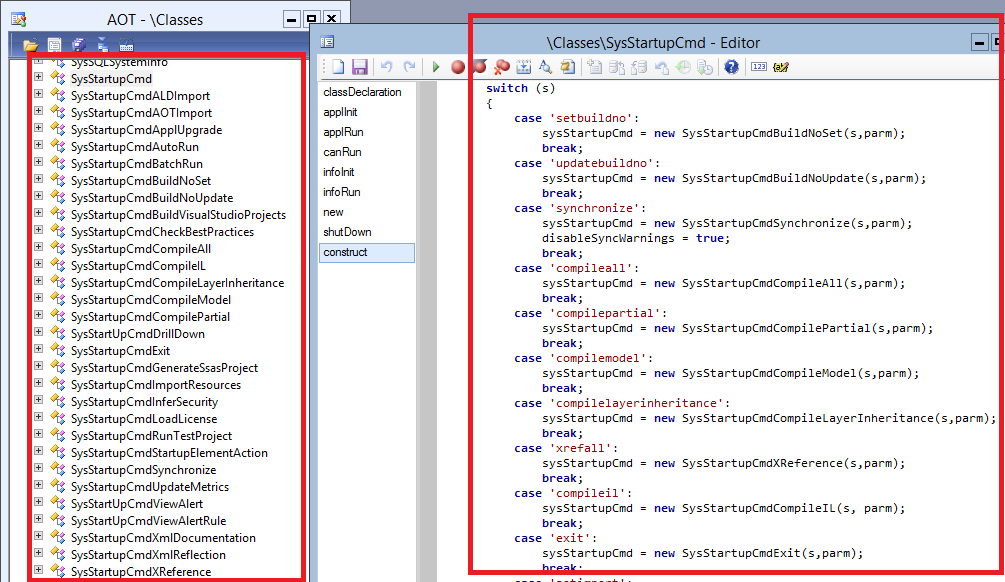
In later AX 2012 revisions (the screenshot shows AX 2012 R3 CU9) we have a wide variety of startup commands. In any case, we have the basics to compile CIL, synchronize the database, update cross references, and in some versions import data (very useful, for example, to import test data before running Unit Test), or to import configuration data during deployment.
It is worth reviewing both docs and code because these options can be very useful for automation. By examining existing classes we can also create custom commands for additional needs.
To execute these commands, PowerShell code looks roughly like this:
$axClientBin = "C:\Program Files (x86)\Microsoft Dynamics AX\60\Client\Bin"
$axClient = Join-Path $axClientBin "\ax32.exe"

$argumentList ="-startupcmd=CompileIL", "-lazytableloading", "-lazyclassloading"

Write-Host ("Command: " + $axClient + " " + $argumentList)

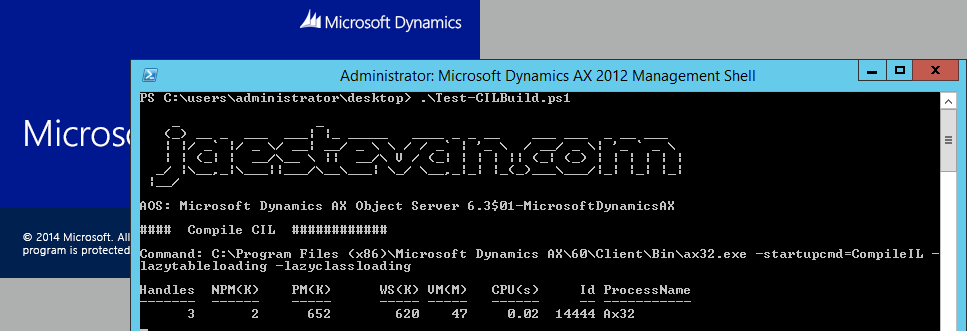
Start-Process -FilePath $axClient -ArgumentList $argumentList -Verb RunAs -Wait -PassThru -ErrorAction Stop
The result is that AX client opens, runs startup commands automatically, and then closes. While AX client is running, the calling PowerShell script waits for completion (because of -Wait). Once AX client closes, script execution continues:
Run ax32.exe with XML parameter - SysAutoRun
Another useful option is storing startup commands in XML files, so the PowerShell script only passes one XML file parameter and the system executes the commands contained in that file. For repetitive automation tasks this can improve readability, though behavior is equivalent to the previous method.
For example, using the following XML file (full syntax is documented here, although source code is always the most up-to-date documentation):
Our PowerShell script would look like this:
$axClientBin = "C:\Program Files (x86)\Microsoft Dynamics AX\60\Client\Bin"
$axClient = Join-Path $axClientBin "\ax32.exe"

$xmlCmdFile = "C:\TEMP\AXSync.xml"
$argumentList = "-startupcmd=Autorun_" + $xmlCmdFile

Write-Host ("Command: " + $axClient + " " + $argumentList)

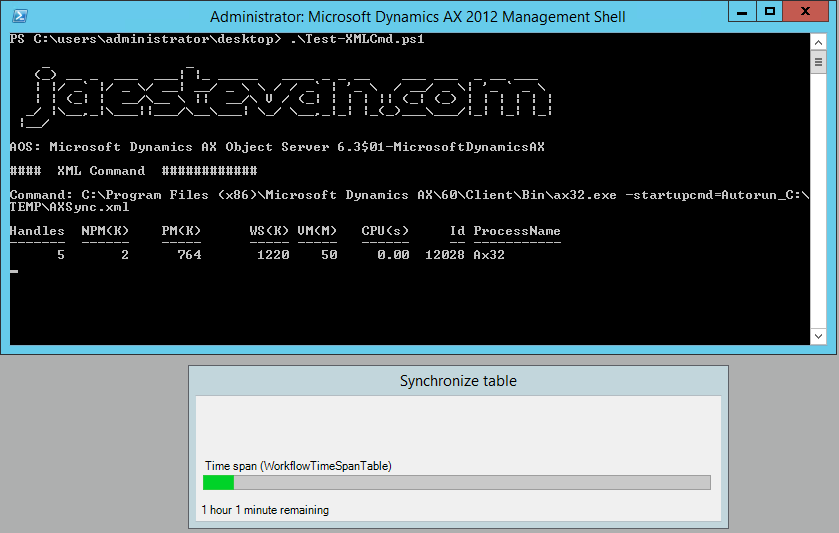
Start-Process -FilePath $axClient -ArgumentList $argumentList -Verb RunAs -Wait -PassThru -ErrorAction Stop
This can also be extended with custom commands; take a look at class SysAutoRun and the docs.
The result is the same as before:
Reuse
Now that we have seen what can be done, my first recommendation is: do not build all this from scratch immediately. It is great to understand the fundamentals, but before implementing everything manually, try PowerShell libraries dedicated to Dynamics AX.
In those libraries you can find solutions for almost every common scenario, plus a strong codebase both for direct usage and for learning by studying their internals. Before developing your full process from zero, consider trying existing libraries and contributing improvements.
Recommended (CodePlex):
PowerShell Open Sourced
Since we are talking about PowerShell, I should mention the news of the week: Microsoft’s announcement of PowerShell as open source and available on Linux, with plans to expand compatibility further. More info:
And launch video:
Posts in this series
- PowerShell and Startup Commands in Dynamics AX 2012 (PS-III)
- PowerShell for Automated Administration of Dynamics AX 2012 (PS-II)
- Introduction to PowerShell for Dynamics AX 2012 Developers (PS-I)