Team Foundation Server 2010 Installation (ALM-II)
In the previous post in this series we discussed the need to follow an application lifecycle management methodology for managing Microsoft Dynamics AX 2012 solutions. We also saw that the main tool to manage the technical side of this lifecycle is Microsoft Team Foundation Server. In this installment we will see how to install and configure the environment to start working.
Prerequisites
I assume we already have a working Microsoft Dynamics AX 2012 environment for testing, which means the following prerequisites are installed:
Read moreMicrosoft Dynamics AX 2012 Application Lifecycle Management (ALM-I)
Although it may seem curious, even unsettling, a large part of ERP implementation projects, including the Dynamics family in general and Microsoft Dynamics AX in particular, are not run as software projects. Perhaps because of how close the project is to the business, or because the people involved spend most of their time with a business-oriented rather than software-oriented mindset, it is very common to forget, or ignore, that we are implementing software and therefore it is advisable to treat the project as a software project, applying software engineering concepts to manage the software and project management concepts to manage the project.
Read more
Microsoft Dynamics AX 2012: Events and .NET Integration (I)
One of the most interesting technical novelties of Microsoft Dynamics AX 2012 (in my opinion) is the incorporation of Events. Knowing and using them is now an obligation to take advantage of all their benefits:
What are Events?
Let’s see it with a step-by-step example. We create a new class in Dynamics AX that extends RunBase, and implement its main() method as always by calling an internal run() method that will display a message:
class JAEEEjemploEventos extends RunBase
{
}
public static void main(Args _args)
{
JAEEEjemploEventos ejemploEventos = new JAEEEjemploEventos();
ejemploEventos.run();
}
public void run()
{
info(“Running class JAEEEjemploEventos in X++”);
}
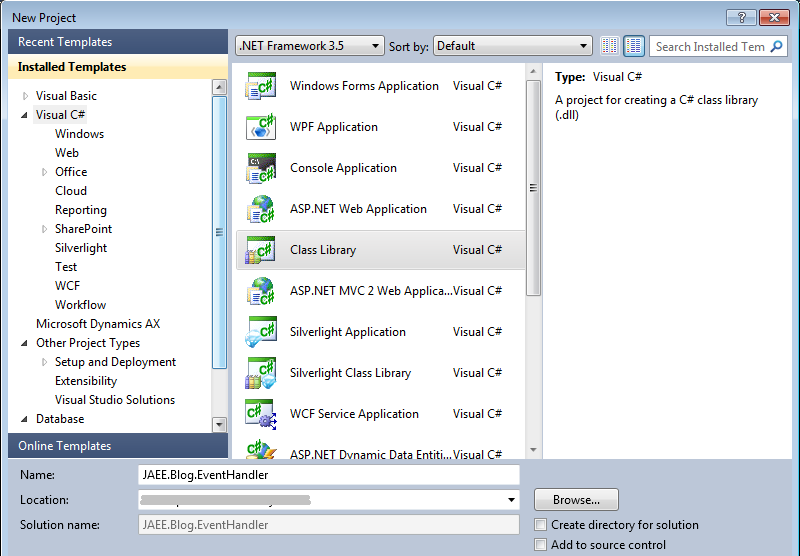
A very simple class, if we run it directly (F5) it will show a message in the InfoLog. Now let’s open a Visual Studio 2010 that we should have installed on the Microsoft Dynamics AX 2012 development machine, create a new project of type Visual C# Class Library. We give it a name to the project and a location (the path is irrelevant):
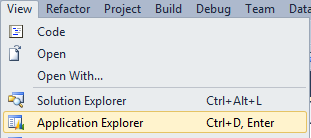
 If we haven’t done it before, go to View > Application Explorer:
 The AOT is now displayed in the workspace:
We search for the newly created class (you can search by typing on top, just like in the AOT from Dynamics AX) and expand its methods. It’s important that at this point the cursor is within the new class that has been created in the project. Right click on the run method and then Add post-event handler. Visual Studio warns us that the project we are working on has not been added to the AOT and asks if we want to add it now. We answer Yes since we want this code to be saved in the AOT as part of a development.
The AOT is now displayed in the workspace:
We search for the newly created class (you can search by typing on top, just like in the AOT from Dynamics AX) and expand its methods. It’s important that at this point the cursor is within the new class that has been created in the project. Right click on the run method and then Add post-event handler. Visual Studio warns us that the project we are working on has not been added to the AOT and asks if we want to add it now. We answer Yes since we want this code to be saved in the AOT as part of a development.
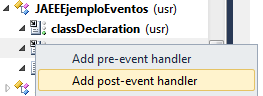 The consequences of these two actions (adding an event handler and adding a Visual Studio project to the AOT) can be seen in the code, where a new method has been added with annotations specific to Dynamics AX (we’ll see later what they mean) and also in the References node of the project where the reference to the Microsoft.Dynamics.AX.ManagedInterop assembly has been added that will allow us to interact with Dynamics AX objects from our C# code:
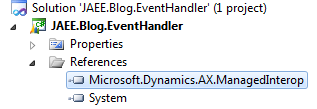 To check this interaction, we return to the Application Explorer and search for the Global class (we all know what it’s for in Dynamics AX). We right-click and Add to project:
 Now in the Application Explorer we can see that the Global class is part of our project and we can use it as if it were a class declared in the C# code (in fact, it is, as we’ll see):
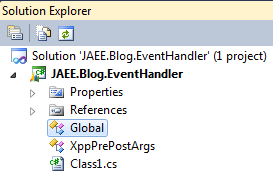 We modify the C# code by adding a new line that uses the Global class from Dynamics AX to display a message in the InfoLog. The similarities with the corresponding X++ code are evident.
Windows 8 and Microsoft Dynamics AX Hyper-V Virtual Machine
A known challenge for all professionals working with Microsoft Dynamics AX, either consultants or technical specialists, is the need to manage many virtual machines for different environments, versions, and customers. As if disk space was not enough of a problem, choosing the right virtualization system is also confusing for many users, especially on laptops used for daily work and demos without access to a server.
Some time ago I published an article about how to run the Hyper-V virtual machines provided by Microsoft on a computer without Windows Server. This issue is solved with the new Windows 8, which allows us to run those Hyper-V virtual machines directly, without any conversion.
Read more